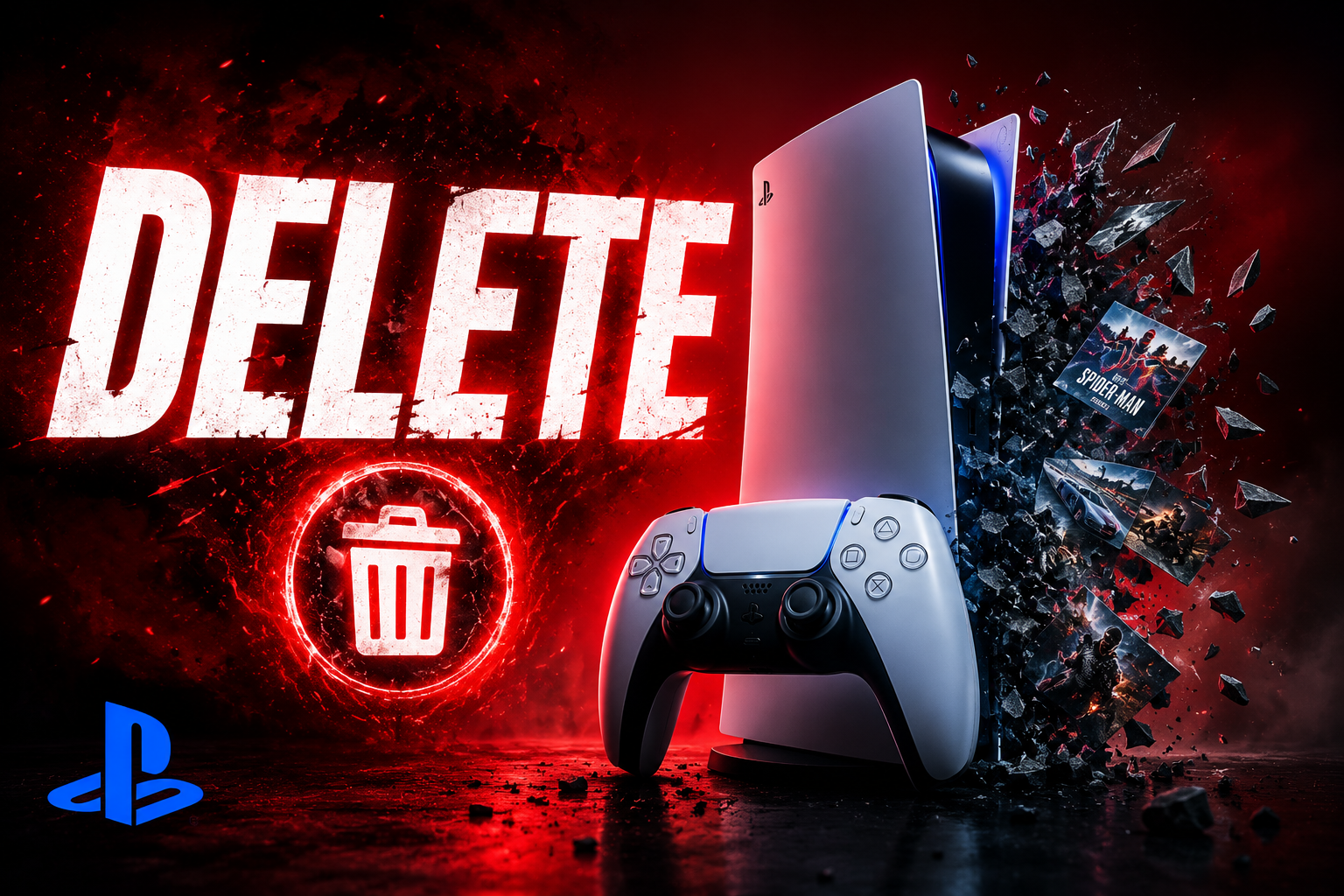
If your PS5 just flashed that dreaded not enough storage warning right as you tried to install something new, you already know why you’re here. Knowing how to delete games on PS5 the right way turns a mildly annoying evening into a thirty second fix, and once you’ve done it a couple times you’ll wonder why it ever felt like a hassle.
Here’s a simple, no fuss walkthrough for deleting games on your PS5.
How to Delete a Game Directly From Your PS5 Home Screen
This is the fastest option. Just highlight the game with your controller. Press the options button, the one with three horizontal lines on it. A small menu pops up and delete is right there waiting. Confirm it and the game disappears from your console in seconds, no digging through menus required.
The only limitation is that this only shows your recently played titles. If it’s been months since you touched a game and it’s fallen off the home screen, you won’t find it here, and you’ll need to go looking through your full library instead.
How to Delete Games From PS5 Game Library
Open up your Game Library and switch over to the Installed tab so you’re only seeing what’s actually taking up space right now. Scroll through until you spot the title you want gone, highlight it, hit options, and select delete.
What makes this view genuinely useful is that every single game listed shows its file size right next to the name. So rather than guessing which title is hogging your storage, you can just scan the list and it’ll be obvious. Usually it’s that sprawling open world game you played for two weeks and then forgot about entirely.
What Happens When You Delete a Game on PS5?
The short answer is nothing happens to your progress.