How to Connect PS5 Controller: Executive Summary
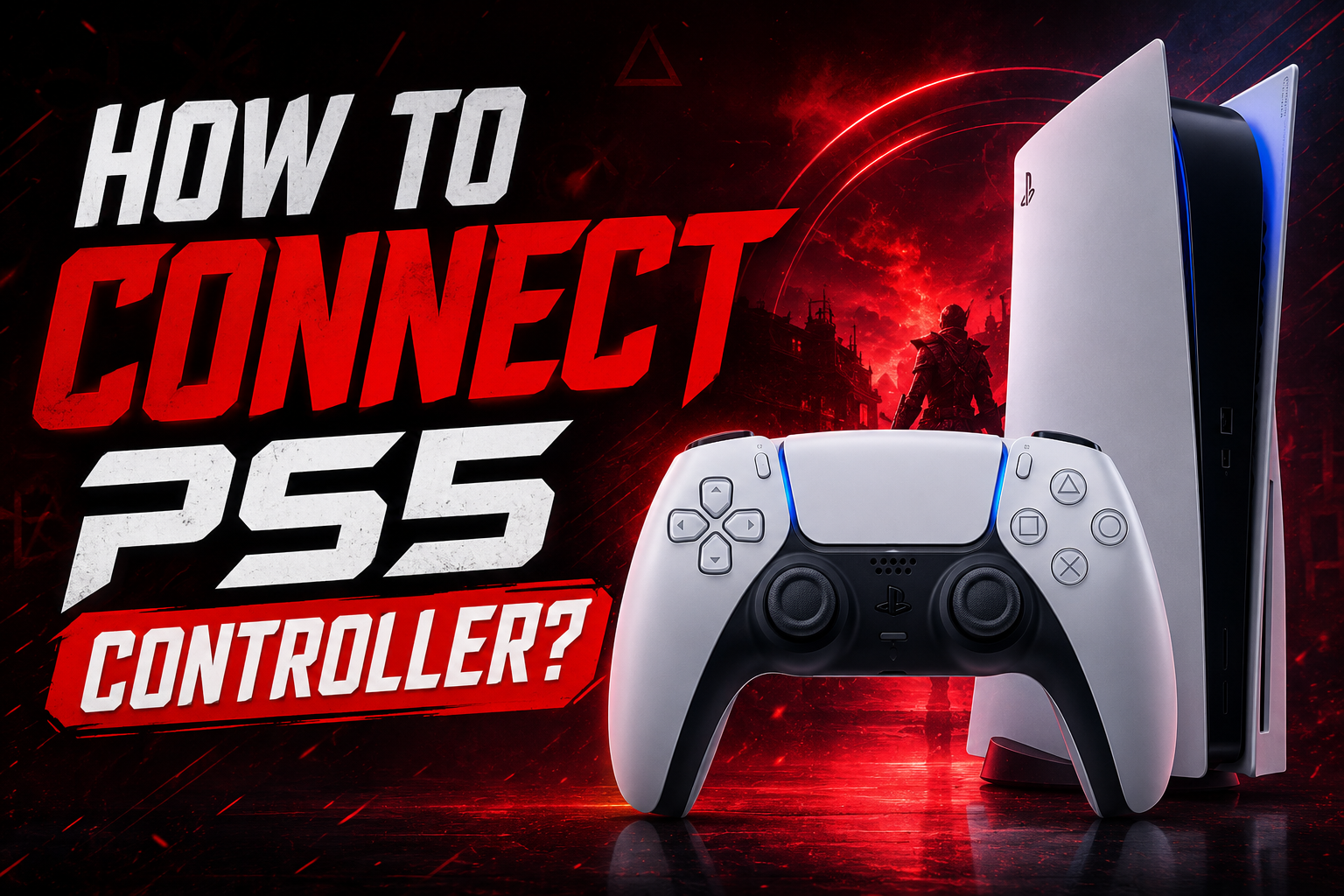
Connecting your DualSense controller to your PlayStation 5 console is a straightforward process that takes just a few seconds. Whether you are setting up a brand new console or adding an extra controller for multiplayer gaming, understanding how to connect PS5 controller to PS5 is essential for every PlayStation owner. This comprehensive guide covers everything from the initial wired connection to wireless Bluetooth pairing, troubleshooting common issues, and connecting your controller to other devices like PCs, Macs, and Steam.
Instant Solution: The simplest method to connect your PS5 controller is using the USB-C cable included with your console. Plug the cable into the controller and the PS5 console, then press the PS button. The controller will pair automatically and can then be used wirelessly after you unplug the cable
How to Connect a PS5 Controller [Step by Step Comprehensive Guideline]
Mastering how to pair PS5 controller to PS5 or other devices is crucial whether you are using your first controller or adding additional ones for local multiplayer sessions. The process differs slightly depending on whether you are setting up a new controller or connecting an extra one to an already functioning console.
1. Connect the Controller with a USB Cable
- Turn on your PS5 console.
- Plug the DualSense controller into the PS5 using a compatible USB-C data cable.
- Press the PS button in the center of the controller.
- Once the light bar activates, the controller is paired with the console.
- You can now disconnect the cable and use the controller wirelessly.
2. Pair the PS5 Controller Wirelessly
- Turn on the PS5 and navigate to Settings → Accessories → General → Bluetooth Accessories.
- Put the DualSense into Bluetooth pairing mode by holding the Create button + PS button simultaneously.
- Release them when the light bar begins flashing.
- Select the controller from the available Bluetooth devices.
- Wait for the pairing process to complete.
3. Use a Proper USB Cable
- Not every USB-C cable supports data transfer; some only provide power.
- If the PS5 does not detect your controller, try another USB-C cable.
- Avoid damaged, loose, or excessively long cables during initial pairing.
- A reliable data cable provides a more stable wired connection.
4. Check the Controller Battery
- A critically low battery can cause pairing or connection problems.
- Connect the controller to the PS5 and allow it to charge for several minutes.
- Check the battery indicator through the PS5 Control Center.
- For reliable wireless gameplay, maintain a reasonable charge level.
5. Troubleshoot Pairing Problems
- Controller not detected: Try another USB-C data cable or USB port.
- Flashing blue light: The controller is searching for a Bluetooth connection.
- No light: Charge the controller and try again.
- Connection keeps dropping: Move away from potential wireless interference and reconnect.
- Controller paired with another device: Re-enter Bluetooth pairing mode before connecting it to the PS5.
6. Reset the DualSense Controller
- Turn off the PS5.
- Locate the small reset button on the back of the DualSense.
- Use a suitable pin to press and hold the button for about 5 seconds.
- Reconnect the controller to the PS5 with a USB-C data cable.
- Press the PS button to establish a fresh pairing.
7. Update Controller Firmware
- Keep the DualSense firmware updated through the PS5.
- Firmware updates can improve wireless stability, compatibility, responsiveness, and system integration.
- If your controller behaves unusually after pairing, check for available controller software updates.
Required Elements for Connecting a PS5 Controller
Before you begin connecting PS5 controller to your console, ensure you have the following items ready:
a) PS5 Console:
Your console should be turned on and updated to the latest system software
b) DualSense Wireless Controller:
The controller you wish to connect
c) USB-C Cable:
The cable included with your PS5 (required for initial setup)
d) Working Controller:
An already paired controller (required for wireless pairing of additional controllers)
e) Stable Power:
Ensure your controller has sufficient battery charge before attempting wireless connection
Having these elements ready ensures a smooth and successful connection process every time.
Do’s & Don’ts When Connecting a PS5 Controller
Do’s
✅ Ensure both your PS5 console and DualSense controller have the latest software updates.
✅ For initial setup, always use the USB-C cable that came with your console.
✅ Make sure your controller has enough battery before starting wireless pairing.
✅ Pay attention to the on-screen instructions during the pairing process.
✅ If the connection fails, use the reset button on the back of the controller.
Don’ts
❌ If the controller is not appearing in the Bluetooth list, do not force the connection; reset and try again
❌ A controller with low battery may fail to connect or disconnect during use
❌ A frayed or damaged USB cable can prevent successful pairing
❌ When pairing wirelessly, ensure the USB cable is disconnected from the controller
❌ A DualSense controller can only be paired to one PS5 console at a time
How to Connect a PS5 Controller to a PC
The DualSense controller works exceptionally well with PC gaming, offering access to its advanced features through Steam and other platforms.
Via USB:
-
Plug the USB-C end of your cable into the controller
-
Connect the USB-A end to your PC
-
Windows will automatically recognize the controller
-
The controller light bar will illuminate, indicating successful connection
Via Bluetooth:
-
Put your controller into pairing mode by pressing and holding the PS and Create buttons simultaneously until the light bar flashes
-
On your PC, navigate to Bluetooth settings
-
Select “DualSense Wireless Controller” from the list of available devices
-
Once connected, the light bar will remain solid
How to Connect a PS5 Controller to a Mac
Connecting your DualSense controller to a Mac follows a similar process to PC connection and works well with macOS.
Via USB:
-
Connect the controller to your Mac using the USB-C cable
-
macOS will detect the controller automatically
-
Some games may require additional setup or mapping software
Via Bluetooth:
-
Press and hold the PS and Create buttons on the controller until the light bar starts flashing
-
Open System Settings on your Mac and select Bluetooth
-
Look for the DualSense Wireless Controller in the device list
-
Click Connect to pair your controller
-
macOS will remember the connection for future use
USB vs Bluetooth: Which Connection Method Is Better?
| Feature | USB Connection | Bluetooth Connection |
|---|---|---|
| Setup Speed | Faster initial setup | Slightly longer process |
| Reliability | Very stable connection | Generally stable, can have occasional interference |
| Charging | Charges while gaming | Does not charge while connected |
| Range | Limited by cable length | Full wireless range |
| Latency | Negligible | Very low, imperceptible in most games |
| Ease of Use | Plug and play | Requires pairing process |
| Best For | Initial setup, charging, competitive gaming | Casual gaming, comfortable couch play |
Common PS5 Controller Connection Problems and Solutions
Controller Is Flashing but Not Connecting
If your PS5 controller keeps flashing without connecting to the console, the pairing process may have failed. Reset the controller by pressing the small reset button on the back with a pin, then connect it to the PS5 using a USB cable and try pairing it again.
Controller Connects but Disconnects Immediately
A controller that connects and then disconnects may have a low battery or be affected by wireless interference. Fully charge the controller and move it away from potential Bluetooth interference. You can also connect it with a USB cable to determine whether the problem is related to the wireless connection.
Controller Is Not Detected at All
If the controller does not appear when attempting to connect it, make sure it is in pairing mode and that its light bar is flashing. Reset the controller, restart the PS5, and attempt the pairing process again. Also, check that the controller is not already connected to another device.
Buttons Are Working Incorrectly or Appear Unresponsive
Unresponsive buttons can sometimes result from temporary software or firmware issues. Disconnect and reconnect the controller, check for available controller firmware updates, and try another USB port on the PS5. If the problem continues, reset the controller and pair it again.
Controller Has Latency or Input Lag
If your controller responds slowly during gameplay, switch to a wired USB connection for a more stable connection and minimal wireless interference. You can also move closer to the PS5 and keep other wireless devices away from the console and controller to reduce potential Bluetooth interference.
PS5 Controller Connection Checklist
Before starting the connection process, use this checklist to ensure everything is ready:
Console is turned on and updated to the latest system software version
Controller has sufficient battery for the pairing process
USB cable is functional and not damaged
No other devices are connected to the controller you are trying to pair
Controller indicator light is off before beginning wireless pairing
You have a working controller to navigate menus if you are adding an additional controller
Reset tool available in case you need to reset the controller
You are within Bluetooth range of your console for wireless connections
Common Mistakes to Avoid When Pairing a PS5 Controller
Avoiding these common mistakes ensures a smooth pairing experience every time.
Mistake 1: Trying to Pair Wirelessly Without an Existing Controller
If you do not have an already paired controller, you cannot navigate the PS5 menus to initiate wireless pairing. Always use the USB cable for your first controller connection.
Mistake 2: Forgetting to Disconnect the USB Cable
When attempting wireless pairing for additional controllers, ensure the USB cable is disconnected from the controller. A connected cable prevents the controller from entering wireless pairing mode .
Mistake 3: Ignoring Controller Indicator Light Status
Before pairing a new controller, ensure its player indicator light is off. If the light is on, press and hold the PS button until the controller turns off completely.
Mistake 4: Attempting to Use PS4 Controllers for PS5 Games
While you can connect a DualShock 4 controller to your PS5, it will only work with PS4 games and cannot play PS5 titles.
Mistake 5: Not Updating Firmware
Always keep your controller and console firmware updated to avoid connection issues and compatibility problems.
PS5 Controller Connection Comparison
| Connection Type | Best Use Case | Setup Difficulty | Latency | Charging |
|---|---|---|---|---|
| USB-C Cable | Initial setup, competitive gaming, charging | Easy | Minimal | Yes |
| Bluetooth | Casual gaming, couch play | Medium | Very Low | No |
| PC via USB | PC gaming with cable | Easy | Minimal | Yes |
| PC via Bluetooth | Wireless PC gaming | Medium | Very Low | No |
| Mac via Bluetooth | Wireless Mac gaming | Medium | Very Low | No |
| Steam | Steam gaming with custom configs | Medium | Low | Depends |
Pro Tips for a Fast & Reliable Controller Connection
Update Your Controller Firmware
Keep your DualSense controller updated with the latest firmware. Sony regularly releases updates that improve connection stability and add new features. Connect your controller via USB to the PS5 console and follow any update prompts that appear.
Charge Your Controller Completely
A fully charged controller pairs more reliably and maintains a stronger connection. If you experience connection issues, plug your controller into the console and let it charge for at least 30 minutes before attempting to pair again.
Reduce Bluetooth Interference
Other Bluetooth devices can interfere with your controller connection. Turn off unused Bluetooth devices nearby and try to keep a clear line of sight between your controller and console.
Use the Correct Connection Method
For the most stable connection during competitive gaming, use the USB cable. For casual gaming where you want freedom of movement, Bluetooth provides adequate performance.
Maintain Clear Line of Sight
Keep your controller within reasonable range of your console and avoid placing obstacles between them. Walls and large objects can interfere with the Bluetooth connection.
Reset Your Controller Before Troubleshooting
If you encounter persistent connection issues, pressing the reset button on the back of your controller can often resolve the problem. This reset does not delete your pairing or settings but can clear temporary glitches .
How to Connect PS5 Controller (Common Questions)
How Many PS5 Controllers Can You Connect at the Same Time?
You can connect up to four DualSense controllers to a single PS5 console simultaneously. This supports local multiplayer games that allow four players. To add extra controllers, simply pair each one wirelessly using the method described in the main guide. Each controller will be assigned a different player indicator light.
Can You Connect a PS5 Controller to a PS5 Without a Cable?
Yes, absolutely. While the initial setup of your first controller requires a USB cable for the very first pairing, after that you can disconnect the cable and use the controller wirelessly via Bluetooth. For additional controllers, you can pair them entirely wirelessly using an already connected controller to navigate the console menus.
Can You Connect a PS5 Controller to Multiple Devices?
A DualSense controller can be paired to multiple devices like a PS5, PC, Mac, smartphone, or tablet, but it can only be actively connected to one device at a time. To switch devices, you need to put the controller into pairing mode again and connect to the new device. It remembers previous pairings, so reconnecting to a known device is quick.
Can You Use a PS5 Controller While It Is Charging?
Yes, you can use the controller while it is charging via a USB cable connected to the PS5 console or any USB power source. The controller will work normally while charging, though the cable may limit your movement depending on its length. Note that wireless play while charging is not possible unless you use a charging dock that also acts as a wired connection.
How to Check Your PS5 Controller’s Bluetooth Connection?
On your PS5 console, go to Settings > Accessories > Controllers. Here you will see a list of all connected controllers, their battery levels, and their current connection status (wired or wireless). On a PC or Mac, go to your Bluetooth settings; if the controller is connected, it will appear as “DualSense Wireless Controller” with a “Connected” status. You can also verify the connection by pressing the PS button – the light bar will stay solid if the controller is properly paired and connected.